Remote Work on Public Wi-Fi: A Simple VPN Routine
A clear guide for digital nomads and remote workers using Sovatun VPN on iPhone across cafes, hotels, airports, and coworking spaces.
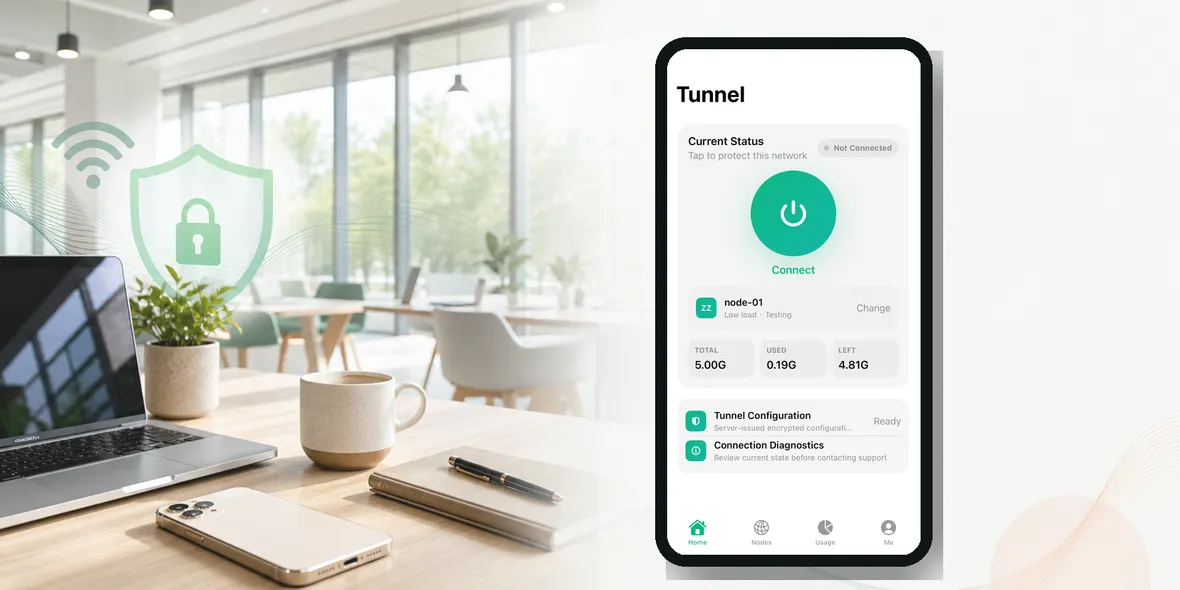
What VPN routine makes sense for remote work on public Wi-Fi?
The short answer is: you can use public or shared Wi-Fi, but you should match your behavior to the task. Reading public information is one thing. Opening email, bookings, work tools, student portals, or payment pages is different.
What VPN routine makes sense for remote work on public Wi-Fi?
This guide is written for normal iPhone users, not security specialists. The goal is to give you a routine you can remember when you are tired, traveling, studying, working, or just trying to get online quickly.
Why This Situation Matters
A digital nomad may work from hotels, cafes, coworking spaces, airports, and rental apartments in the same week. The work stays the same, but the network changes constantly.
That is the key difference from home Wi-Fi. At home, you usually know the router, the password, and the people using it. In a public place, the network may be official and still be shared by many people. It may also have lookalike names nearby.
You do not need to assume the worst. You only need to avoid treating a shared network like a private one.
What People Usually Do
Most public Wi-Fi mistakes happen during ordinary tasks. Someone checks one message, then opens a booking. Someone looks at a map, then signs into email. Someone joins Wi-Fi for convenience, then uses it for work.
That chain is easy to miss because each step feels small. The safer habit is to pause before the personal part begins.
Be more careful before:
- treating rental Wi-Fi like home Wi-Fi
- opening sensitive client files on unknown networks
- ignoring company policy
- using public Wi-Fi for account recovery
- turning off security tools for convenience
A Practical iPhone Routine
Use this simple routine when the network is public or shared:
- Verify each network before joining.
- Turn on a VPN before work tools.
- Use company-approved apps.
- Use mobile data for sensitive approvals.
- Sign out of tools you no longer need.
This is not a complicated security setup. It is a repeatable habit. Once you do it a few times, it becomes as normal as checking your battery before a long trip.
What A VPN Helps With
A VPN creates a private tunnel for your iPhone connection. On public Wi-Fi, that can help protect the connection layer before you browse.
This is useful because you do not control the local network. You may not know who manages it, how it is configured, or whether someone has created a similar-looking hotspot nearby.
The practical timing matters: turn on the VPN before opening personal apps, not after you have already signed in or entered information.
What A VPN Does Not Fix
A VPN does not make a fake website safe. It does not stop every phishing email. It does not replace strong passwords, two-factor authentication, or careful link habits. It also does not control what apps and websites collect after you sign in.
That is why honest VPN language is important. It is better to say a VPN helps protect your connection on shared networks than to claim it protects every part of privacy.
Sovatun does not collect browsing history, visited URLs, DNS query details, or raw traffic content. That is a specific data boundary, not a vague slogan.
Where Sovatun Fits
Sovatun is built for simple iPhone public Wi-Fi use. It gives you a private tunnel, official locations, and clear usage without asking you to manage a complicated setup.
Use Sovatun for remote work moments on shared Wi-Fi.
Bottom Line
The useful rule is simple: if the network is shared and the task is personal, turn on your VPN first.
That one habit works across airports, hotels, cafes, campuses, train stations, shared offices, and travel days. It keeps the advice practical, honest, and easy to repeat.
More Real-Life Examples
The easiest way to decide what to do is to look at the task in front of you. If you are only checking a public timetable, reading a menu, or looking at weather, the risk is lower. If you are opening email, travel bookings, work tools, cloud files, student portals, shopping accounts, or payment pages, treat the network more carefully.
Here is the difference in plain language: public information can usually wait for a normal connection habit, but personal information deserves a safer routine. You do not need to make every Wi-Fi decision dramatic. You just need to notice when the task changes from casual browsing to account activity.
For example, checking a hotel address is simple. Signing in to change the reservation is more sensitive. Reading a restaurant menu is simple. Entering card details is more sensitive. Checking a train platform is simple. Resetting your email password while connected to station Wi-Fi is more sensitive.
Quick Self-Check
Before you continue on a shared network, ask yourself:
- Is this the official network name?
- Am I about to sign in?
- Am I about to enter payment or account details?
- Would mobile data be a better choice for this task?
- Is Sovatun connected before I open personal apps?
If the answer makes you hesitate, slow down. Use mobile data, ask staff to confirm the network, or wait until you are on a more trusted connection.
Why This Helps SEO Readers Too
People searching for “Remote Work on Public Wi-Fi: A Simple VPN Routine” are usually not looking for a theory lesson. They want to know what to do next. That is why the answer should include a simple rule, a realistic warning, and a clear next step. Sovatun belongs naturally when the next step is using a private tunnel before personal browsing on public Wi-Fi.