Public Wi-Fi Login Pages: What to Check Before You Continue
A friendly guide for iPhone users who see public Wi-Fi login pages at hotels, airports, cafes, campuses, and stations.
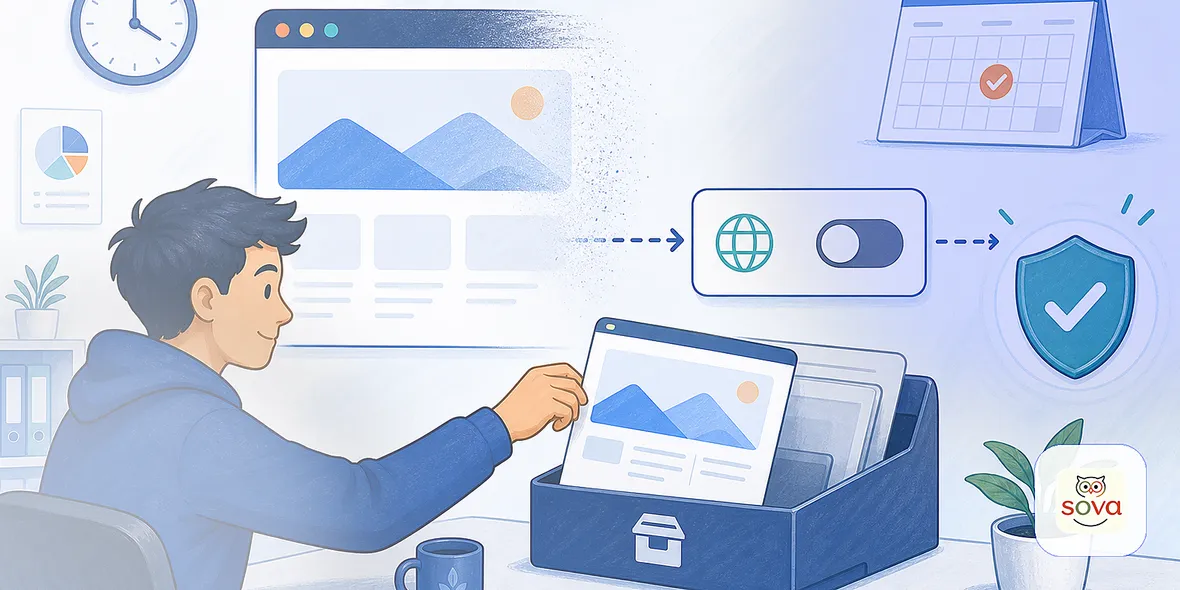
You connect to public Wi-Fi, and your iPhone opens a login page. It asks for an email address, room number, phone number, or a checkbox agreeing to terms.
So is a public Wi-Fi login page safe to use?
The honest answer is: sometimes it is normal, but you should not type private information into every page that appears. A Wi-Fi login page can be legitimate, but it can also be confusing, unnecessary, or suspicious.
What That Page Usually Is
Many public Wi-Fi networks use a captive portal. That is the page you see before the network gives you internet access.
Hotels may ask for a room number or last name. Airports may ask you to accept terms. Cafes may ask for an email address. Campuses or offices may ask for a guest code. None of that is automatically dangerous.
The problem is that users often click through without checking where they are or what the page asks for.
The Simple Answer
Use the login page only if the network is official and the page asks for reasonable information.
If the page asks for passwords, payment details, identity documents, card numbers, Apple ID credentials, or anything unrelated to Wi-Fi access, stop.
Use mobile data or ask staff to confirm the network.
What Reasonable Looks Like
Reasonable public Wi-Fi login pages usually ask for:
- Accepting terms of use
- A hotel room number and last name
- A guest code from staff
- A simple email field for access
- A time-limited access button
Even then, you can be cautious. If you do not want marketing emails, avoid giving your main email address unless it is required and you trust the venue.
The page should match the place. A hotel page should look connected to the hotel. An airport page should match the airport or provider. A cafe page should not ask for your banking login.
Red Flags
Be careful if the login page:
- Asks you to install a certificate or profile
- Requests a payment card unexpectedly
- Asks for your Apple ID password
- Redirects through strange domains
- Has poor spelling or odd branding
- Appears after joining a Wi-Fi name you did not verify
- Shows browser security warnings
One red flag may be enough to stop. Public Wi-Fi is not worth rushing through a strange prompt.
A Real Travel Example
Imagine you are at a hotel. You see two networks: one is “Hotel Guest” and another is “Hotel Free WiFi.” You choose the second because it sounds easier.
The login page asks for your email, phone number, and a password. You are tired, so you start typing.
That is the mistake. Before entering anything, confirm the official network name. The page may be harmless, but guessing is not a good habit when the network is public.
Should You Turn On A VPN Before Or After The Login Page?
Usually, you need to pass the Wi-Fi login page first before your VPN can fully connect. That is normal.
The routine is:
- Confirm the official Wi-Fi name.
- Complete the login page only if it looks reasonable.
- Turn on your VPN.
- Then open personal apps and account pages.
Do not open email, bookings, work tools, or payment pages before the VPN is active.
What A VPN Helps With
A VPN helps protect your connection layer after you are connected to the network. This is useful on shared Wi-Fi because you do not control the local network.
But it does not make a suspicious captive portal safe. If the login page itself asks for private information, a VPN does not fix that.
That is why the order matters: verify first, connect carefully, then turn on the VPN before personal browsing.
Where Sovatun Fits
Sovatun is useful after you have joined the official Wi-Fi and are ready to browse. It gives your iPhone a simple private tunnel for public Wi-Fi browsing, with clear usage and official locations.
Sovatun does not collect browsing history, visited URLs, DNS query details, or raw traffic content. That is the kind of clear data boundary users should look for.
Use Sovatun after safely joining public Wi-Fi at hotels, airports, cafes, and shared places.
Bottom Line
A public Wi-Fi login page can be normal. But normal does not mean you should type anything it asks for.
Verify the network. Keep the login page simple. Avoid strange requests. Turn on your VPN before personal browsing.
Quick Self-Check
Before you tap through, ask: does this page match the place I am in, and is it asking only for Wi-Fi access information? If the answer is unclear, do not continue just because the connection is free.