Family Public Wi-Fi Checklist for Summer Travel
A simple public Wi-Fi checklist for families traveling with iPhones, covering airports, hotels, cafes, kids' devices, and realistic VPN use.
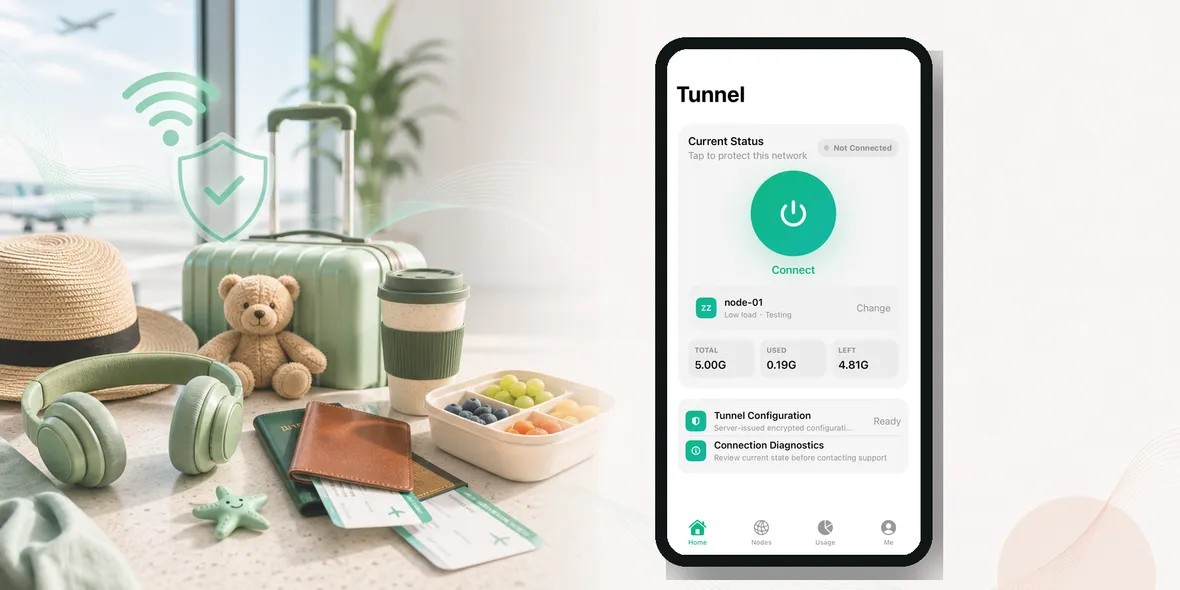
Family travel makes public Wi-Fi feel almost necessary. One person needs maps. Someone else needs a boarding pass. Kids want videos. A parent needs to check hotel details. Another phone needs to message relatives.
So the question is not “will my family use public Wi-Fi this summer?”
They probably will.
The better question is: what should we check before joining it?
The Simple Answer
Before your family joins public Wi-Fi, check the network name, avoid lookalike hotspots, turn on a VPN before personal browsing, and keep kids away from account logins or payment pages on unknown networks.
You do not need a complicated family security meeting. You need a few rules everyone can remember.
Public Wi-Fi is not automatically bad. It is just shared, temporary, and outside your control.
Why Family Travel Creates More Wi-Fi Risk
Solo travelers usually manage one device. Families manage several.
There may be:
- Parent iPhones
- Kids’ iPhones or iPads
- A shared tablet
- A work phone
- A laptop
- A game device
Each device may connect to hotel Wi-Fi, airport Wi-Fi, cafe Wi-Fi, or rental apartment Wi-Fi.
The more devices you have, the easier it is for someone to connect quickly without checking the network. Kids may tap the first Wi-Fi name they see. Adults may be distracted by luggage, check-in lines, or tired children.
That is normal. It is also why simple rules matter.
A Family-Friendly Rule
Use this sentence:
“If the Wi-Fi is not ours, check it before using personal accounts.”
That is easy to explain.
It means airport Wi-Fi, hotel Wi-Fi, cafe Wi-Fi, museum Wi-Fi, train station Wi-Fi, and rental Wi-Fi all deserve a quick check.
It does not mean nobody can use Wi-Fi. It means the family should not treat every network like home.
What Parents Should Check First
Before connecting family devices:
- Confirm the official network name.
- Ask hotel or cafe staff if you are unsure.
- Avoid names that are misspelled or oddly generic.
- Watch for login pages asking for unnecessary personal details.
- Turn on a VPN before opening personal apps.
- Disconnect devices when leaving the place.
This routine is especially useful in airports and hotels because those are places where many similar Wi-Fi names may appear.
What Kids Should Avoid On Public Wi-Fi
Kids do not need a technical explanation. Give them clear do-not-do rules:
- Do not create new accounts on public Wi-Fi.
- Do not enter card information.
- Do not approve strange popups.
- Do not download unknown apps.
- Do not share verification codes.
- Do not join random Wi-Fi names just because they say “free.”
If they need help, they should ask an adult before tapping through.
The goal is not to scare them. The goal is to stop rushed decisions.
What A VPN Helps With For Families
A VPN can help by creating a private tunnel for the iPhone’s connection on public Wi-Fi. That is useful when a parent is checking bookings, email, travel details, or account pages.
It can also make the family routine simpler: public Wi-Fi first, VPN second, personal browsing third.
But a VPN does not replace parental controls, safe browsing habits, or account security. It does not know if a child is entering information into a fake website. It does not stop every scam message. It does not control what apps collect inside their own systems.
Use it as part of a family checklist.
Common Summer Travel Moments
At the airport, use public Wi-Fi to check flight information, but verify the network first.
At the hotel, confirm the Wi-Fi name at the front desk before sharing it with kids.
At a cafe, avoid letting kids download games or enter account information on the guest network.
At a rental apartment, remember that you still do not manage the router. Use the same caution you would use at a hotel.
On a train, be extra careful with lookalike network names because people connect and disconnect quickly.
What To Do If Something Feels Off
If a login page looks strange, leave the network.
If the Wi-Fi asks for payment details when it should be free, confirm with staff.
If your iPhone gives a warning, do not ignore it.
If a child says they clicked something weird, stay calm and check the device. Change passwords if needed, sign out of suspicious sessions, and use mobile data until you understand what happened.
Where Sovatun Fits
Sovatun is useful for parents who want one simple step before using personal apps on public Wi-Fi. It is designed for iPhone simplicity, official locations, and clear usage, so you do not need to explain a complicated setup to the whole family.
Sovatun does not collect browsing history, visited URLs, DNS query details, or raw traffic content. That is a clear data boundary families can understand.
Use Sovatun for family travel, hotel Wi-Fi, airport Wi-Fi, and shared summer networks.
Bottom Line
Families do not need perfect security habits. They need repeatable ones.
Check the network. Turn on the VPN before personal browsing. Keep kids away from account and payment actions on unknown Wi-Fi. Use mobile data when something feels wrong.
That is enough to make summer public Wi-Fi safer without making travel feel complicated.